HTML errors are among the most common frustrations for developers at every skill level. A single unclosed tag, a misplaced attribute, or a broken nesting structure can break an entire layout and send you on a time-consuming debugging hunt.
The consequences go beyond visual glitches: search engines may struggle to index your pages, screen readers may fail to interpret your content, and users may bounce before engaging with your site. Fortunately, a new generation of AI-powered tools can detect and fix these problems in seconds rather than hours.
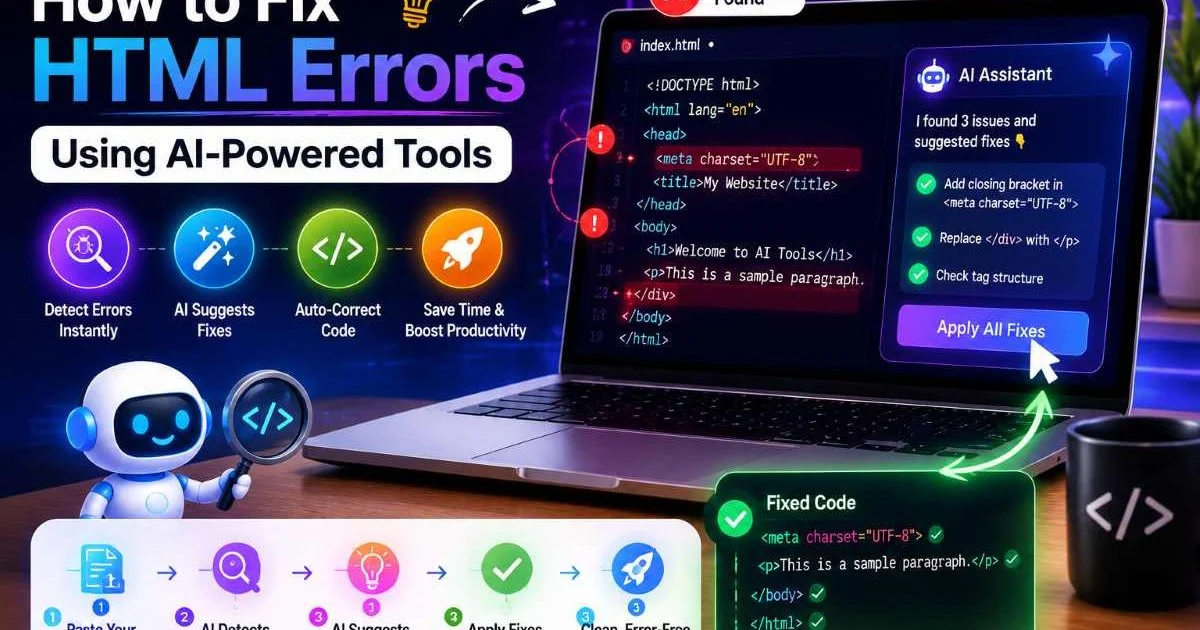
This guide walks you through a practical, step-by-step process for identifying, understanding, and resolving HTML errors using intelligent editing tools. By the end, you will have a repeatable workflow that keeps your code clean and your projects on track.
Key Takeaways
- AI-powered editors catch HTML errors faster than manual line-by-line review.
- Running validation before any debugging session saves significant troubleshooting time.
- Understanding common error patterns helps you write cleaner code from the start.
- Automated fixes should always be reviewed manually for context and accuracy.
- Consistent use of AI tools reduces long-term technical debt in web projects.
Step 1: Identify HTML Errors with Validation Tools
Why Validation Comes First
Before you can fix anything, you need a complete picture of what is broken. Many developers skip validation and jump straight into visual debugging, which is like trying to fix a car engine by listening to the radio. A proper validation pass gives you a structured list of every syntax issue, missing element, and deprecated attribute in your document. This inventory becomes your roadmap for efficient debugging.
The W3C Markup Validation Service remains the gold standard for checking HTML against official specifications. You paste your URL or upload your file, and it returns a detailed error report with line numbers and severity levels. For a more interactive experience, tools like the best HTML code testers let you paste code snippets and see errors highlighted in real time. These tools are especially useful for beginners who want to understand exactly where their markup deviates from the spec.
Choosing the Right Validator
Not all validators serve the same purpose. Some focus purely on syntax compliance, while others check for accessibility issues or SEO-related markup problems. If you are just starting out, an AI HTML editor designed for beginners can combine validation with guided explanations. The key is picking a tool that matches both your skill level and the scope of your project.
For larger projects, consider integrating validation into your build process. Linting tools like HTMLHint or the Nu HTML Checker can run automatically each time you save a file. This catches errors the moment they appear, rather than letting them accumulate into a tangled mess that takes hours to untangle. Start every debugging session with validation, and you will always know exactly what you are dealing with.
Bookmark your preferred validator and run it after every major editing session, not just before deployment.
Step 2: Understand Common HTML Error Patterns
Structural Errors
Most HTML errors fall into a handful of recurring categories. Structural errors are the most frequent: unclosed tags, improper nesting, and duplicate IDs account for a large share of validation failures. For example, placing a <div> inside a <p> tag causes the browser to auto-close the paragraph, which shifts your layout in unpredictable ways. These kinds of mistakes are easy to make, particularly in complex templates with deeply nested components.
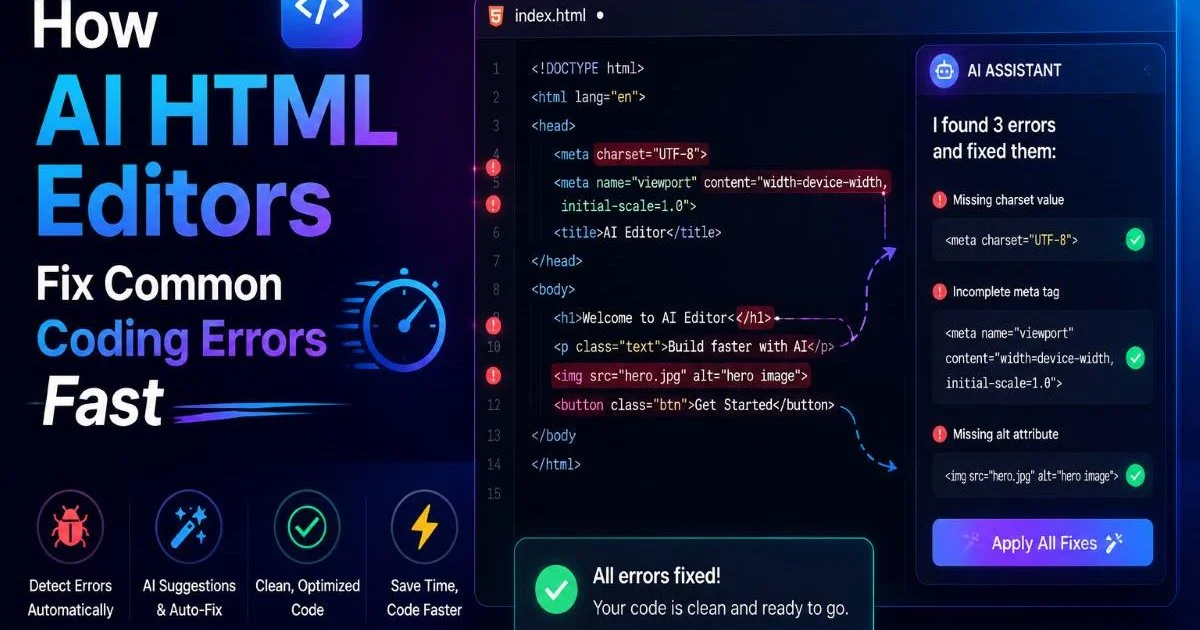
Another common structural problem is mismatched opening and closing tags. Writing <div> but closing it with </span> produces cascading errors that affect every element below the mistake. As explained in detail in the guide on how AI HTML editors fix common coding errors fast, these cascading failures are precisely where manual debugging becomes painful. A single root-cause error can generate dozens of downstream warnings in your validation report.
Attribute and Accessibility Errors
Beyond structure, attribute-level errors are extremely common. Missing alt attributes on images, empty href values on links, and invalid type attributes on input elements all trigger validation warnings. These might seem minor, but they directly impact accessibility and user experience. Proper screen reader testing for web developers will quickly reveal how missing attributes create confusing or unusable experiences for people relying on assistive technology.
Deprecated elements and attributes represent another category that trips up developers. Tags like <center> and <font>, along with attributes like bgcolor and align, still appear in legacy codebases. While browsers tolerate them, they signal outdated practices and can conflict with modern CSS. Recognizing these patterns helps you categorize errors by severity so you can prioritize fixes that matter most.
Not every validation warning requires an immediate fix. Focus on errors first, then address warnings by impact.
| Error Type | Example | Impact | Fix Difficulty |
|---|---|---|---|
| Unclosed tag | Missing </div> | Layout breaks | Easy |
| Improper nesting | <p><div>...</div></p> | Parsing errors | Medium |
| Missing alt attribute | <img src="photo.jpg"> | Accessibility failure | Easy |
| Deprecated element | <font size="3"> | Standards non-compliance | Easy |
| Duplicate ID | Two elements with id="main" | JavaScript failures | Medium |
Step 3: Use AI-Powered Tools to Fix Errors Automatically
How AI Detection Works
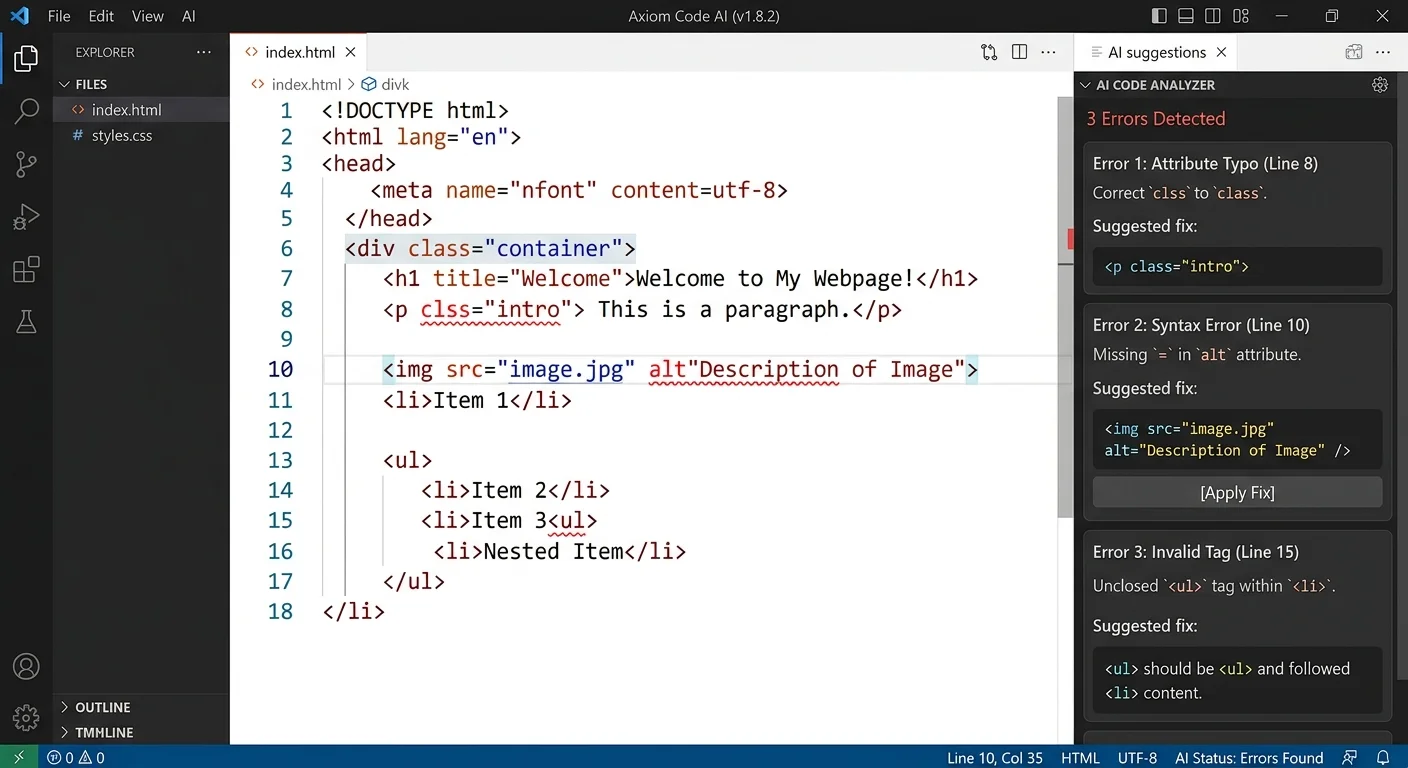
This is where modern tooling transforms the debugging experience. AI-powered HTML editors do not simply match patterns the way traditional linters do. They analyze the context of your code, understand what you likely intended, and suggest corrections that preserve your design goals. For instance, if you accidentally close a tag in the wrong order, an AI tool recognizes the intended structure and reorders the closing tags correctly, rather than just flagging the error.
VEX, the AI agent built into the AI-powered HTML editor at HTML Generator, exemplifies this approach. It scans your code continuously, highlights problems in real time, and offers one-click fixes with explanations. The difference between this and a traditional validator is significant: instead of receiving a list of cryptic error codes, you get plain-language descriptions of what went wrong and why the suggested fix works. This educational feedback loop accelerates your learning curve dramatically.
"The best debugging tool is one that teaches you to write better code, not just patches your mistakes."
Applying and Reviewing Fixes
When an AI tool suggests a fix, you should not blindly accept it. Review each suggestion to confirm it matches your intent. Automated tools occasionally misinterpret custom patterns, especially in templating languages like Handlebars or EJS where non-standard HTML syntax is intentional. A quick visual check after applying a batch of fixes will catch any cases where the AI guessed wrong about your design intent.
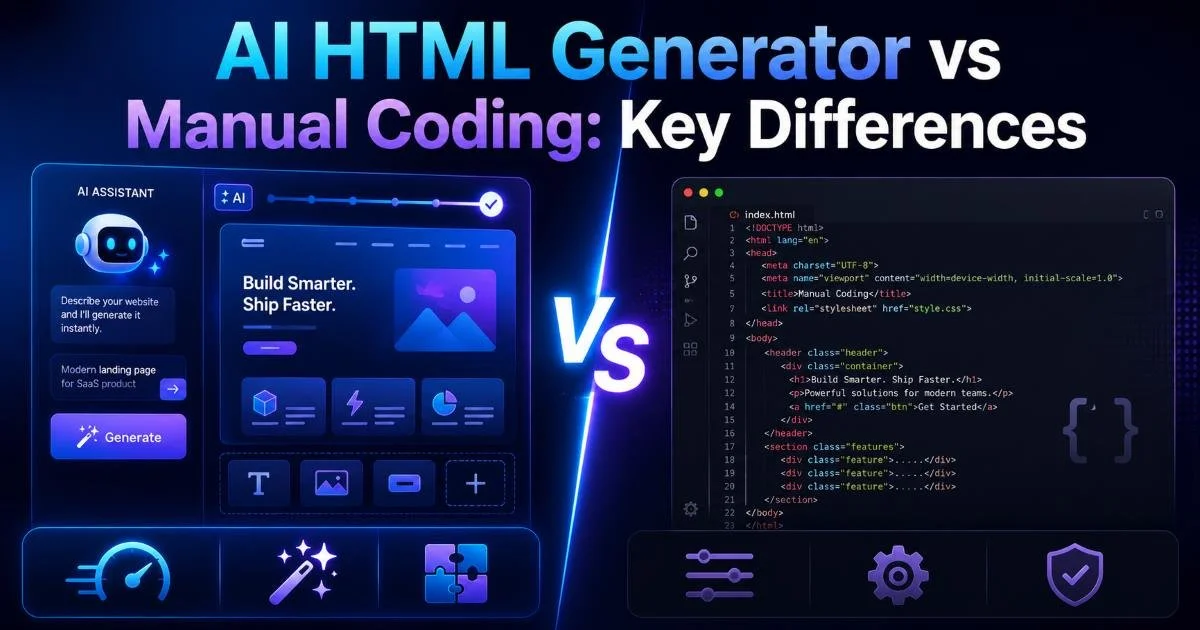
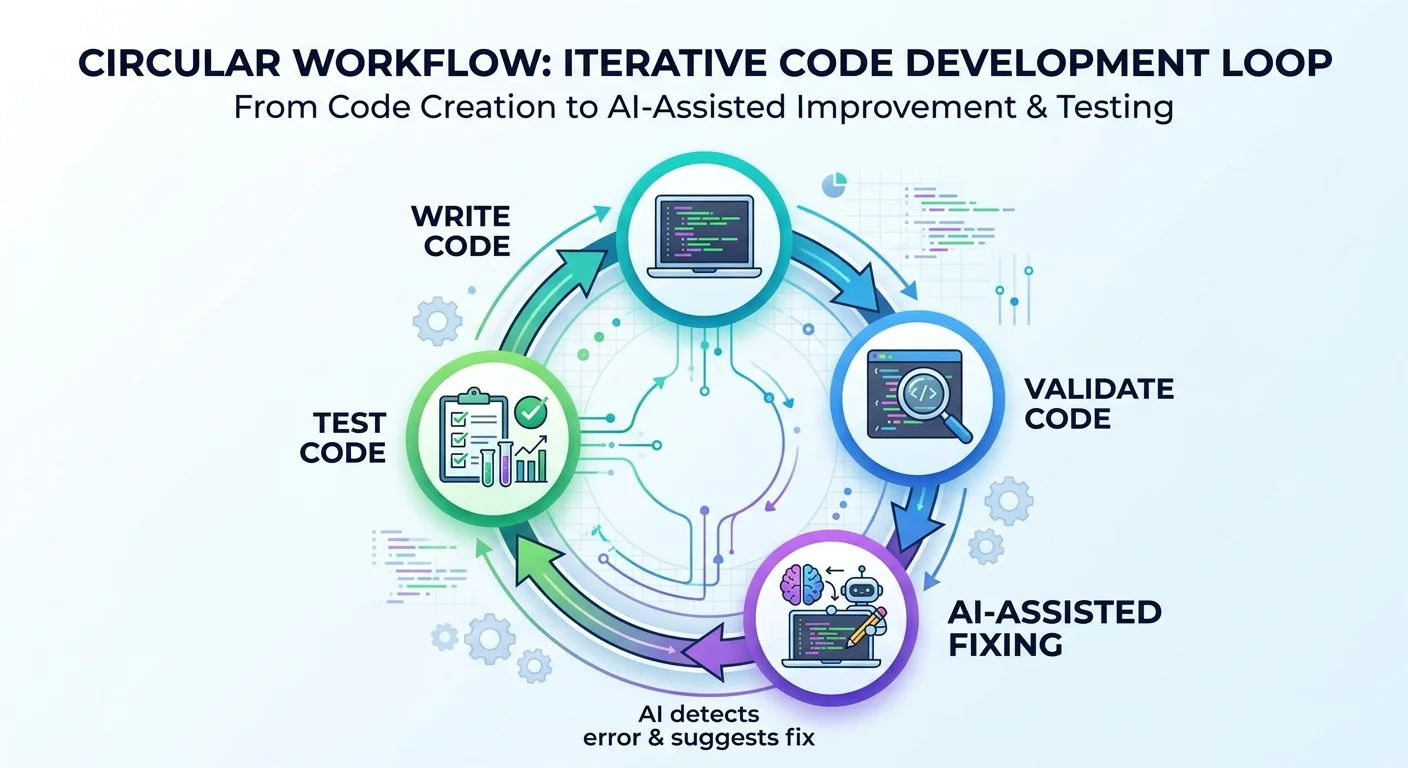
The practical workflow looks like this: open your file in an AI-powered editor, let it scan and highlight issues, review the suggested fixes one by one, apply them, then re-validate. For developers curious about the trade-offs between writing everything by hand and using AI assistance, the comparison of AI HTML generators versus manual coding breaks down the key differences worth considering. Most experienced developers find that a hybrid approach, writing core structure manually and using AI for cleanup, produces the best results.
Always back up your files or use version control before applying bulk automated fixes to production code.
Step 4: Verify and Prevent Future HTML Errors
Post-Fix Testing
Fixing errors is only half the battle. After applying corrections, you need to verify that your changes actually resolved the issues without introducing new ones. Run your updated code through validation again. Then open the page in at least two browsers (Chrome and Firefox cover most rendering engine differences) and check that the visual output matches your expectations. Pay special attention to sections where you applied structural fixes, as those are most likely to shift layouts.
Functional testing matters too. If your page includes forms, interactive elements, or JavaScript-dependent features, test every interaction path. A corrected tag structure might inadvertently change an element's position in the DOM, which can break event listeners or CSS selectors. Automated testing tools like Cypress or Playwright can help catch these regressions if you maintain a test suite, but even quick manual spot-checks are far better than skipping verification entirely.
Building a Prevention Workflow
The most effective way to handle HTML errors is to prevent them from reaching production in the first place. Set up your editor to validate on save. Use pre-commit hooks that run HTMLHint or a similar linter before code enters your repository. These small friction points catch errors at the earliest possible stage, when they are cheapest to fix. Teams that adopt this practice report significantly fewer production bugs related to markup issues.
Ongoing education rounds out the prevention strategy. Every error you encounter is a learning opportunity. Keep a running document of mistakes you have made and the patterns behind them. Over time, you will internalize the rules and make fewer errors instinctively. AI tools accelerate this process because they explain each issue as they fix it. Combined with structured learning, this approach transforms you from someone who reacts to errors into someone who rarely produces them in the first place.
Create a personal "error journal" noting each HTML mistake and its root cause to spot your recurring weak points.
Frequently Asked Questions
?How do I integrate HTMLHint into my build process for automatic validation?
?Is the W3C Validator better than an AI-powered HTML editor for fixing errors?
?How much debugging time can AI tools realistically save on an HTML project?
?Is it safe to apply AI-suggested HTML fixes without reviewing them manually?
Final Thoughts
Fixing HTML errors does not have to be a tedious, manual grind. With a clear workflow of validation, pattern recognition, AI-assisted correction, and post-fix verification, you can resolve issues in minutes that once consumed entire afternoons.
The tools available today are genuinely smart enough to understand your intent, not just your syntax. Build these steps into your daily coding habits, and you will spend less time debugging and more time building the features and designs that actually matter to your users.
Disclaimer: Portions of this content may have been generated using AI tools to enhance clarity and brevity. While reviewed by a human, independent verification is encouraged.